![Covisum_color300.png]](https://www.covisum.com/hs-fs/hubfs/Covisum_color300.png?height=40&name=Covisum_color300.png)
Who can update billing
-
Primary account holders on an active subscription.
Step-by-step: Update your card
-
Sign in to your Covisum account at https://suite.covisum.com.
-
Click the User icon (upper-right).
-
Select Manage Account.
-
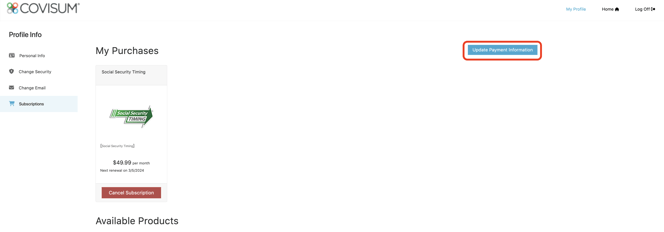
On the Subscriptions page, click the change link next to the current card on file.
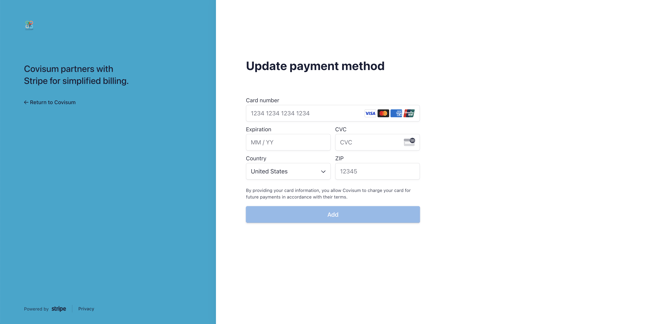
5. Enter your new credit card number, expiration date, CVC, and billing ZIP, then Save.
Note
Troubleshooting
-
Can’t access Manage Account? Make sure you’re signed in to the correct organization.
-
Card declined or saving fails? Confirm card details, billing ZIP, and available funds, then try again. If issues persist, contact support.
Need help?
If you run into any problems updating your card, contact Covisum Support via the Help Center or call 877-844-7213.